 etke.cc
Baibot
made by etke.cc
The Baibot bot installed by us is powered by baibot.

Baibot (pronounced bye-bot) drops a conversational AI straight into your Matrix rooms. You can type to it or talk to it, it can read the images you send, reply out loud as a voice message, and generate or edit pictures on request. It’s our more private and more capable successor to the old ChatGPT bot.
“More private” is the part we care about most, and it’s a real choice you make when you set the bot up rather than a promise we ask you to trust. The provider you point baibot at decides where your conversations go, and our recommended one keeps them nowhere at all. More on that below.
What it can do
What’s available depends on the provider and model you choose, but the full set is:
- Text chat, including reading and answering questions about images you send.
- Speech-to-text, so a voice message you send gets understood.
- Text-to-speech, so the bot can answer out loud with a voice message instead of typing.
- Image generation and editing: describe a picture to get one back, or send one with instructions to change it.
The voice-in, voice-out pair is the one people underestimate. Talk to it and get a spoken reply back, no keyboard at either end, and with the right provider none of it is stored or used to train anything. That’s a very different bot to talk to than one piping your words through a service that keeps them.
Providers: Venice (recommended), OpenAI (discouraged), and 8 more.
Venice
We recommend Venice. It’s the most capable provider baibot supports today, and it’s the only one that pairs that full feature set with real privacy.
Venice does everything on that list, through its own knob-rich API instead of a stripped-down compatibility shim, with a wide choice of models to pick from, frontier and open-source alike.
Two things make Venice the one we recommend. It’s private: inference runs on Venice’s own GPUs or zero-data-retention partner hardware, nothing is stored, so your conversations never linger on a server or end up in a training set. And it’s unrestricted: you set the content policy, not the provider, so you can switch the filter off and the bot will talk about whatever you need, including the adult subjects other hosts are too squeamish to allow. For a bot you might tell something personal, in a moment you need it most, that pairing isn’t a nice-to-have. It’s the whole point, and it’s how we think about hosting at etke.cc.
Beyond that, the rest lives behind Venice’s other knobs: watermarks, web search, fine control over how images get made. The fully-commented sample Venice config lays out every one, worth a read before you tune.
Baibot supports plenty of other providers too: OpenAI, Anthropic, Mistral, Groq, Ollama, and more, with the full list and per-provider capabilities in the providers guide. You can even mix and match them in one room. But if you’re starting fresh, start with Venice.
Fast start
Setting baibot up is a one-time job for an administrator, and with Venice it’s five short steps. Out of the box the bot starts empty and can’t do anything useful, so this is where you give it a brain.
Get a Venice API key. Sign up at Venice, then create an API key in your account. Keep it handy for step 3.
Open a direct chat with the bot. Message
@baibot:your-server.comdirectly, replacingyour-server.comwith your Matrix homeserver domain (the part after the:in your own Matrix ID). A one-on-one room is best for setup, since you’ll be pasting an API key into it.Create a Venice agent for the whole server:
!bai agent create-global venice my-venice-agentType
veniceexactly (that’s the provider name);my-venice-agentis just a label you choose, any text without spaces or/. The bot replies with a sample configuration. Find the line that readsapi_key: YOUR_API_KEY_HERE, replace the placeholder with the key from step 1, then send the whole configuration back to the bot, as plain text or wrapped in a code block, to create the agent. You don’t need to touch anything else: the defaults are sensible (Kimi K2.5 for chat, Parakeet for speech-to-text, Kokoro for text-to-speech, Chroma for image generation), so changing only the key is enough to get going. The fully-commented sample config explains every other knob when you want to tune.See what the bot's reply looks like
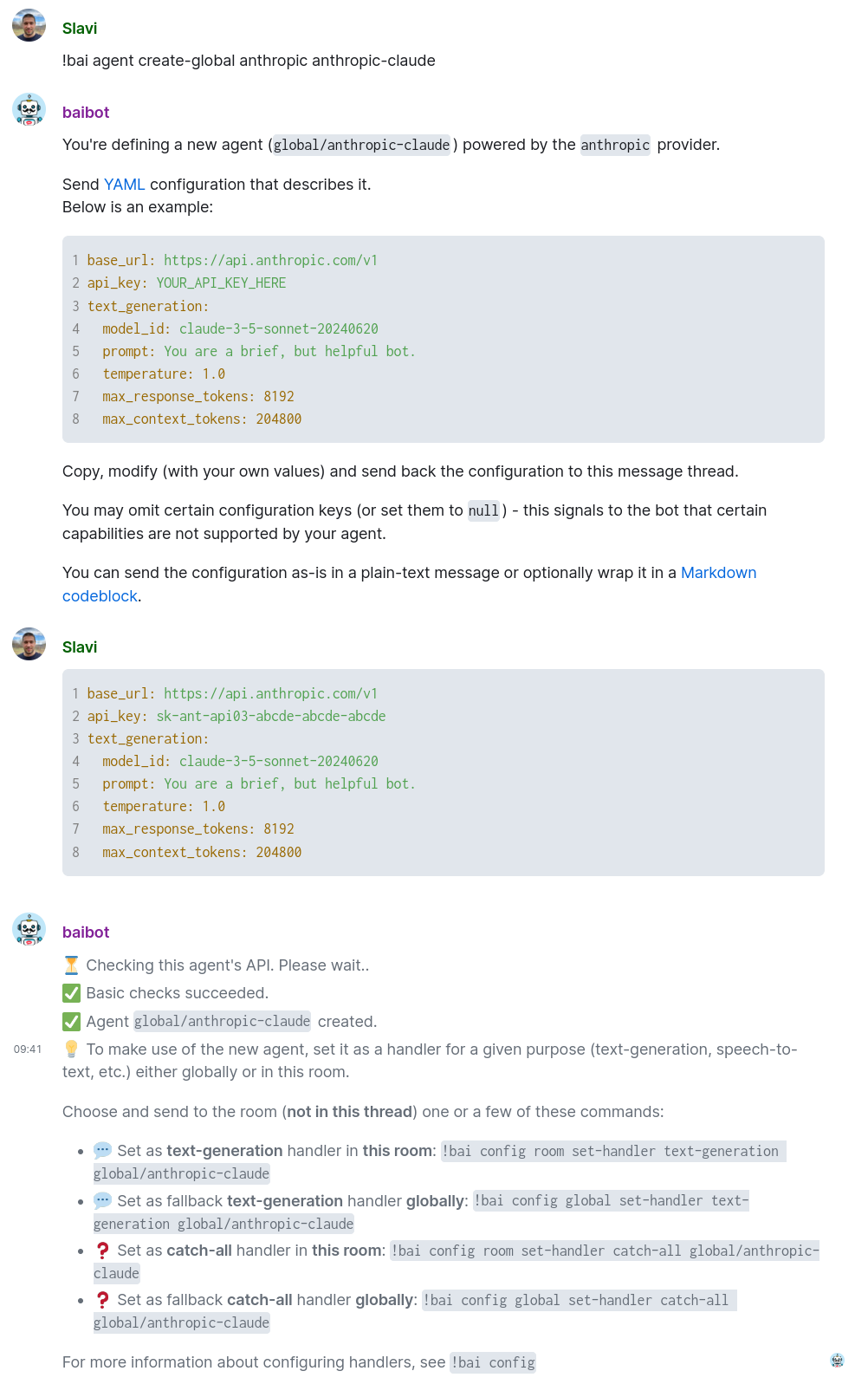
The example uses a different provider, but the steps are identical: find the
api_keyline, replace it, send the config back.Make it the default for everything:
!bai config global set-handler catch-all global/my-venice-agentUse the same name here as in step 3 (if you changed it, run
!bai agent listto see the exact identifier and copy it).catch-allmeans this one agent handles every purpose: chat, vision, voice, images. This step is required: an agent with no handler is invisible, and the bot stays silent no matter what you send it. To confirm everything wired up, send!bai config statusand check your agent is listed.Say hello. Send
Hello!in the room and watch it reply. In group rooms you’ll need to prefix messages with!bai(or mention the bot); see room behavior below.
That’s a working bot: text, voice, and images, all on Venice.
Both global steps matter. A global agent set as a global
catch-allhandler is what lets everyone on your server use the bot with a sensible default, without each person having to configure their own. Do it once and the whole server is covered.
OpenAI
If you already have an OpenAI account or your team runs on it, baibot speaks to it natively and setup is just as quick. We’d still nudge you to Venice, though: with OpenAI your messages sit on US servers for up to 30 days of “abuse monitoring”, readable by their staff (even without “abuse monitoring”). They don’t train on them, but it’s still your conversation on someone else’s machine under someone else’s laws with someone else’s eyes reading your whole conversations, where Venice keeps nothing. Your call, but you know which way we lean.
Still want OpenAI? Same moves as above:
Grab an API key from platform.openai.com.
In a one-on-one chat with the bot, create the agent and paste your key into the sample config it sends back:
!bai agent create-global openai my-openai-agent(
openaiis the real OpenAI provider, not one of the look-alike “OpenAI-compatible” entries.)Make it the default, then say hello:
!bai config global set-handler catch-all global/my-openai-agent
Other knobs live in baibot’s OpenAI provider guide. Everyday use and room behavior work the same whichever provider you picked.
Everyday use
Once an administrator has done the setup above, anyone on the server just talks to the bot:
- Start a chat with
@baibot:your-server.com, or invite it into a room. - Send a message (
Hello!, or!bai Hello!in a group room) and it replies. - Send
!bai helpany time for a guided tour from the bot itself.
Room behavior
The bot knows the difference between a private chat and a crowd:
- In a one-on-one chat, it treats every message as a question and answers in a thread.
- In a group room, it stays quiet so people can talk normally. To bring it in, start your message with
!bai(e.g.!bai What are the benefits of decentralized networks?) or mention it (@baibot: Hello!).
This is configurable through the prefix requirement setting if the defaults don’t suit your room.
Learn more
!bai helpin any room the bot is in. The bot guides you directly.- Usage guide (also via the
!bai usagecommand). - Full documentation.
Screenshots
A few things in action:
- Introduction and general usage: starting your first chat with the bot.
- Image generation: asking it to draw something.
- Agent creation: wiring up your provider.
- Sticker generation and prefix settings: how it behaves in busy group rooms.
Power up with Baibot
Start using Baibot today - get a managed Matrix server with it pre-installed, or add it to your existing setup.