 etke.cc
Steam bridge
The Steam bridge installed by us is powered by matrix-steam.
Features
What the Steam bridge can do
What works now
| Direction | Feature |
|---|---|
| Steam -> Matrix | Text, images, GIFs, stickers, Steam emoji |
| Steam -> Matrix | Rich in-game presence (currently playing, match status) |
| Steam -> Matrix | Profile and avatar sync (real-time and on restart) |
| Steam -> Matrix | Typing notifications |
| Matrix -> Steam | Text with formatting |
| Matrix -> Steam | Network presence and status |
| Misc | Login: password, QR code, SteamGuard 2FA, email code |
| Misc | Automatic session recovery on start and after token expiry |
| Misc | Automatic portal creation for new messages and start-chat |
What is planned
| Direction | Feature |
|---|---|
| Matrix -> Steam | Images, files, GIFs, stickers |
| Matrix -> Steam | Message reactions |
| Matrix -> Steam | Group management (name, avatar, topic, membership) |
| Steam -> Matrix | Game invite details and acceptance |
| Steam -> Matrix | Friend request management |
| Steam -> Matrix | Group info sync (name, avatar, topic) |
Usage
This page shows you how to set up the Steam bridge using Cinny client app (available as an add-on component), so that you can receive and send messages between Steam and Matrix rooms.
Invite the bot to a management room
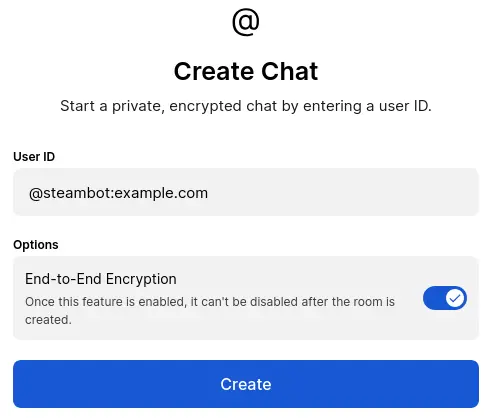
First, please start a chat with @steambot:your-server.com to create a management room.
Make sure to replace your-server.com with your actual “base domain”. Setting your-server.com or example.com does not work on your server!
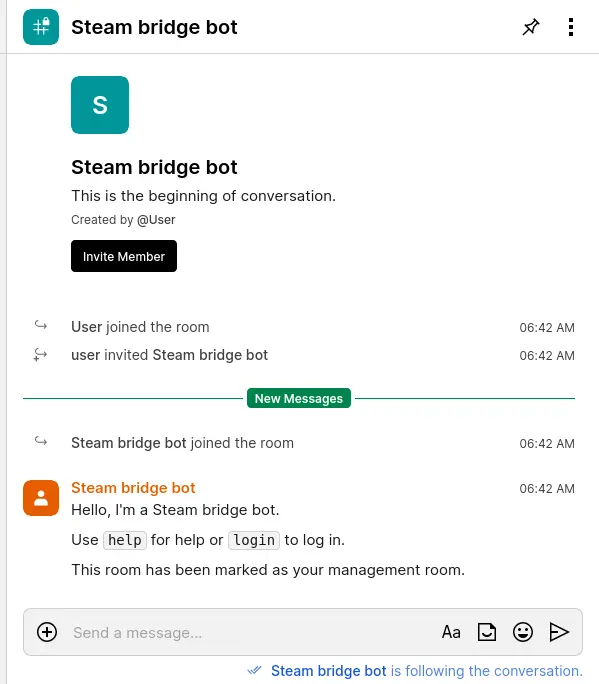
When the bot joins to the created room, it sends confirmation messages to the room as below. If they are visible, bot successfully joined the management room. It works as expected.
Authentication
To bridge Steam over Matrix, you need to authenticate the bridge’s bot for Steam.
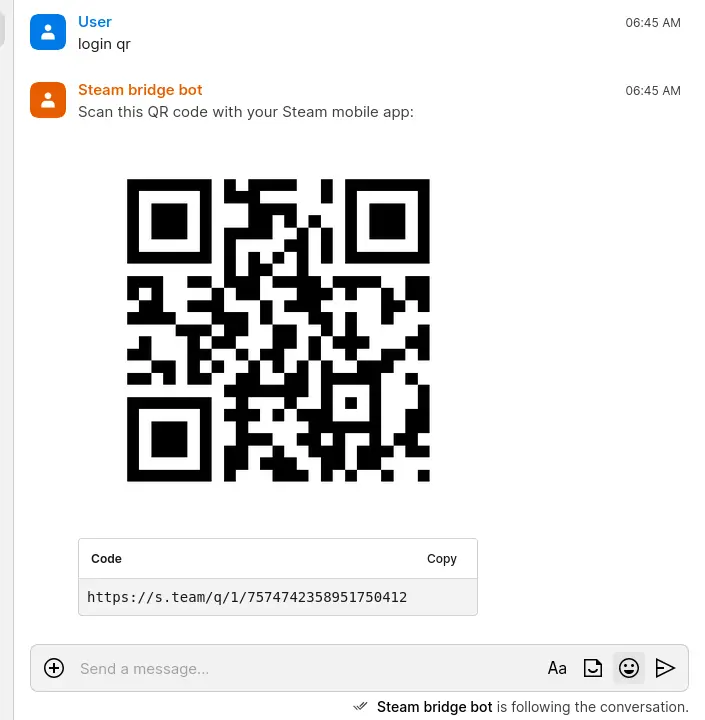
There is a couple of ways for conducting authentication, and the simplest one is to log in with a QR code. Please follow the steps below to do so.
- Send
login qrto the bridge bot - Open the Steam app on your phone
- Point your phone at the image sent by the bot to capture the code
- After scanning the code, you’ll need to approve the login on the mobile app
Due to the early development status of the bridge, in some cases image may not be displayed correctly. If that happens, you can still use QR code login by opening the link provided in the bot’s response. The link looks like this: https://s.team/q/1/1234567890 and redirects to https://store.steampowered.com/about/qrlogin/1/1234567890.
The QR code with the link will be displayed on the room as below:
After logging in, you may uninstall the Steam app from your mobile phone.
The bridge will automatically create rooms when new messages are received from friends on Steam.
Useful commands
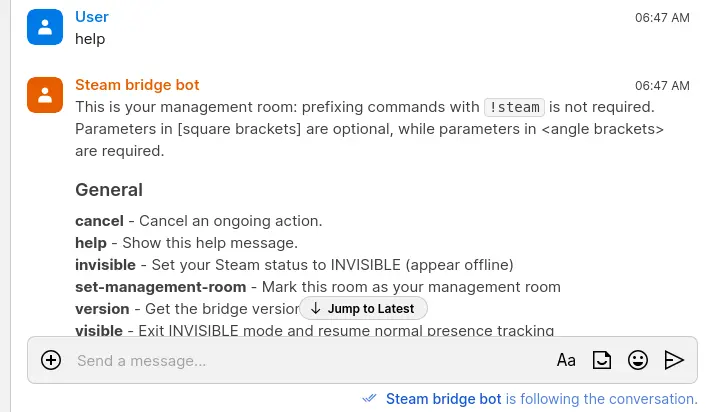
If you send a message help to the room, available commands are output as a message like below:
Here is a couple of useful commands:
search <query>: Search for users on the remote networkstart-chat [login ID] <identifier>: Start a direct chat with the given user
Power up with Steam bridge
Start using Steam bridge today - get a managed Matrix server with it pre-installed, or add it to your existing setup.